
Deskripsyon
CSV Import to Table is a powerful Gutenberg block that allows you to easily import CSV files and display them as fully editable tables in your WordPress posts and pages.
Key Features:
- Import CSV files directly from WordPress media library
- Edit table cells directly in the block editor
- Automatic CSV validation before import
- Clean, responsive table design
- Fast processing for large CSV files
- Replace or clear table data anytime
Perfect for:
- Data presentations
- Price lists
- Product comparisons
- Statistics and reports
- Any tabular data from CSV files
How to Use:
- Add the “CSV Import to Table” block to your post/page
- Click “Import CSV” and select your CSV file from the media library
- Edit any cell by clicking on it
- Publish your post with the beautiful data table
Additional Info
Support:
For support, please visit the plugin support forum.
Rate Us:
If you like this plugin, please leave a 5-star review. It helps us improve!
Mga Screenshot
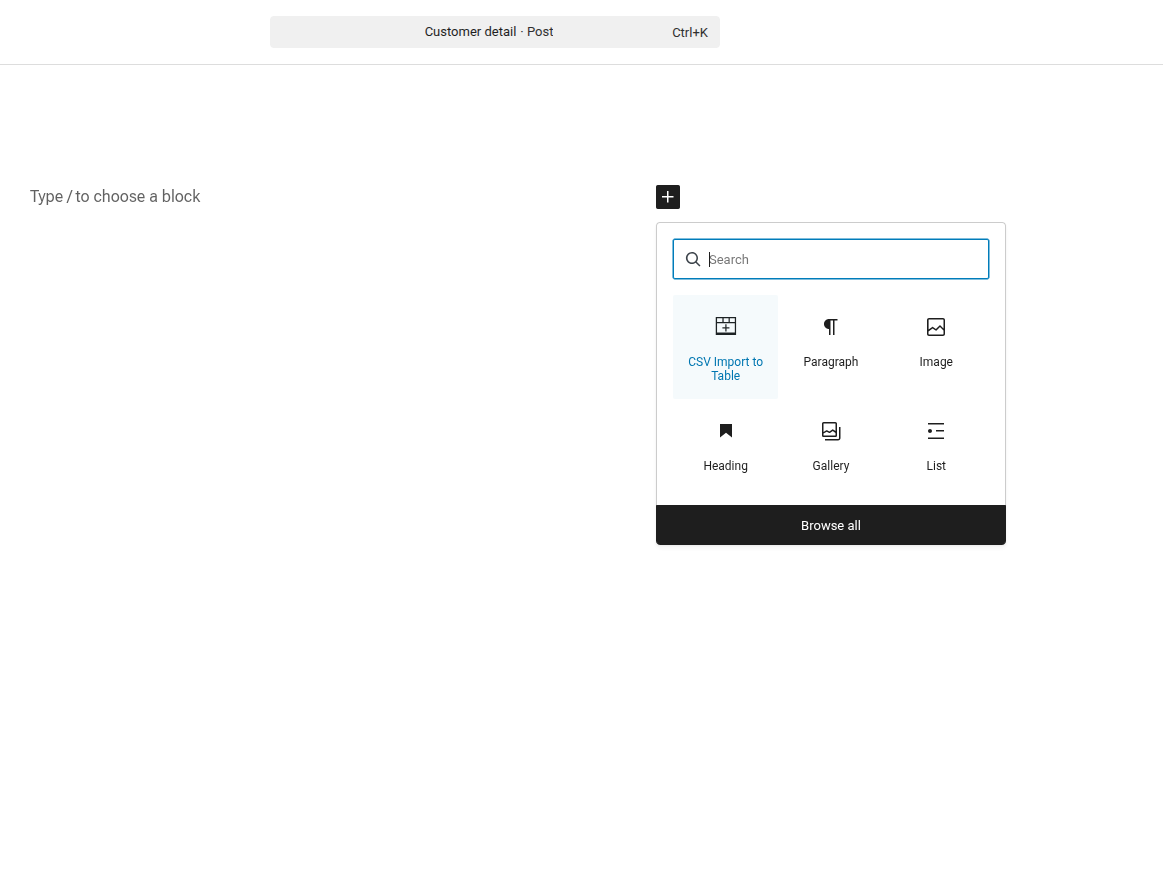
Import CSV button – Click to upload your CSV file 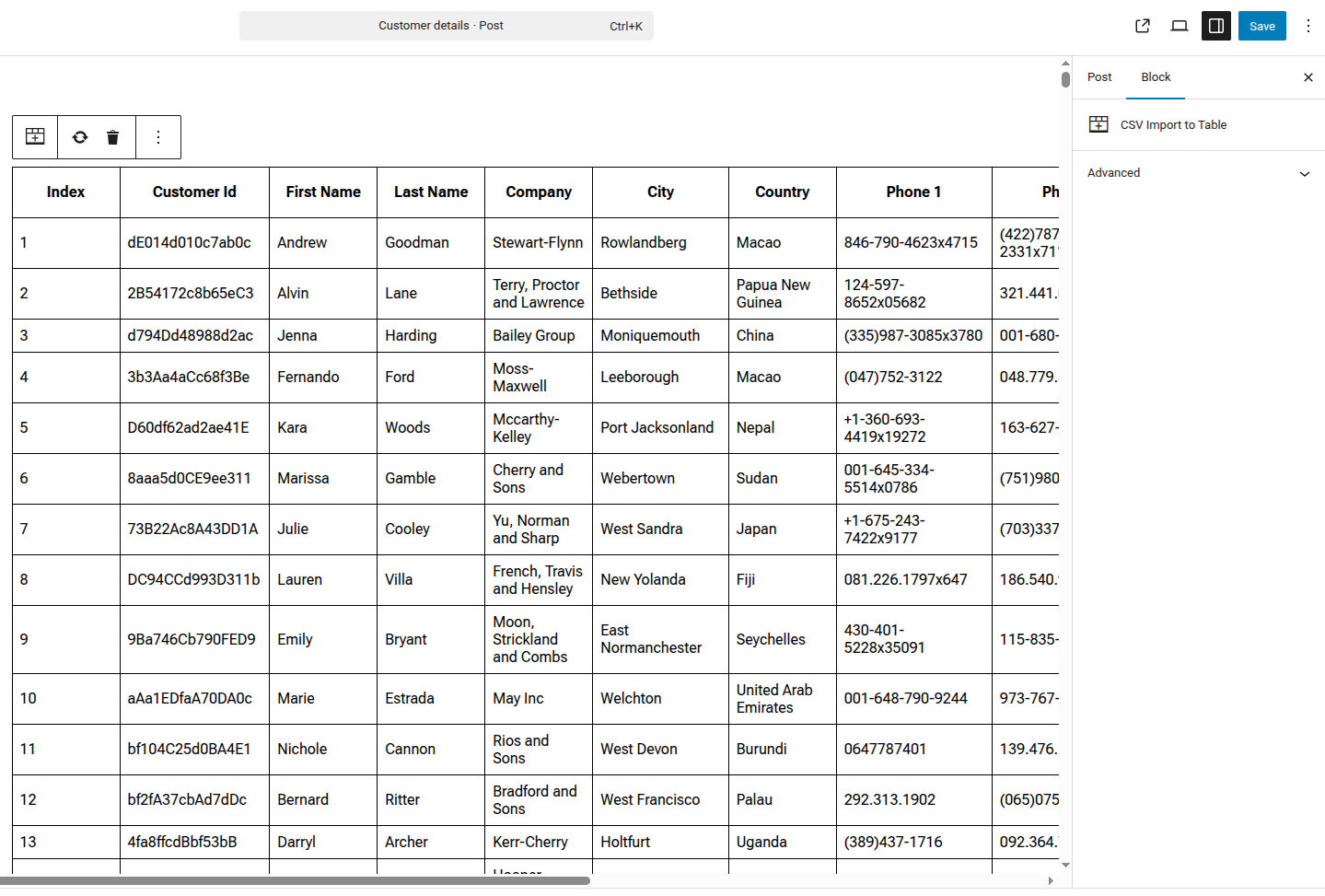
CSV processing with progress bar
Blocks
Ang plugin na ito ay nagbibigay ng 1 block.
- CSV Import to Table
Pag-install
Automatic Installation:
- Log in to your WordPress admin panel
- Go to Plugins > Add New
- Search for “CSV Import to Table”
- Click “Install Now” and then “Activate”
Manual Installation:
- Download the plugin zip file
- Go to Plugins > Add New > Upload Plugin
- Choose the downloaded zip file and click “Install Now”
- Activate the plugin
After Activation:
- Create or edit a post/page
- Click the (+) button to add a new block
- Search for “CSV Import to Table”
- Add the block and start importing your CSV files!
FAQ
-
What file format is supported?
-
The plugin supports standard CSV (Comma-Separated Values) files. Make sure your file has a .csv extension.
-
Can I edit the table after importing?
-
Yes! You can edit any cell directly in the block editor by clicking on it.
-
What happens if my CSV has inconsistent columns?
-
The plugin automatically adjusts rows to match the column count of the header row, adding empty cells or trimming excess columns as needed.
-
Is there a file size limit?
-
The plugin can handle large CSV files efficiently using chunked processing. However, very large files (10,000+ rows) may take longer to process.
-
Can I replace the CSV data?
-
Yes! Use the “Replace CSV” button in the block toolbar to import a new CSV file.
-
Does it work with the Classic Editor?
-
No, this plugin requires the Gutenberg block editor (WordPress 5.0+).
Mga Review
Wala pang reviews para sa plugin na ito.
Mga Contributor at Developer
Ang “CSV Import to Table” ay open source software. Ang mga sumusunod na tao ay nag-ambag sa plugin na ito.
Mga Contributor
Isalin ang “CSV Import to Table” sa iyong wika.
Interesado sa development?
Tingnan ang code, i-check ang SVN repository, o mag-subscribe sa development log sa pamamagitan ng RSS.
Changelog
1.0.0
- Initial release